GTA 6 Auto Drive: How to Turn On Cinematic Mode Autopilot
Your car can drive itself in GTA 6 through Cinematic Mode. See how to turn it on for PS5 and Xbox, the 3 speeds, the limits and how to cancel it.
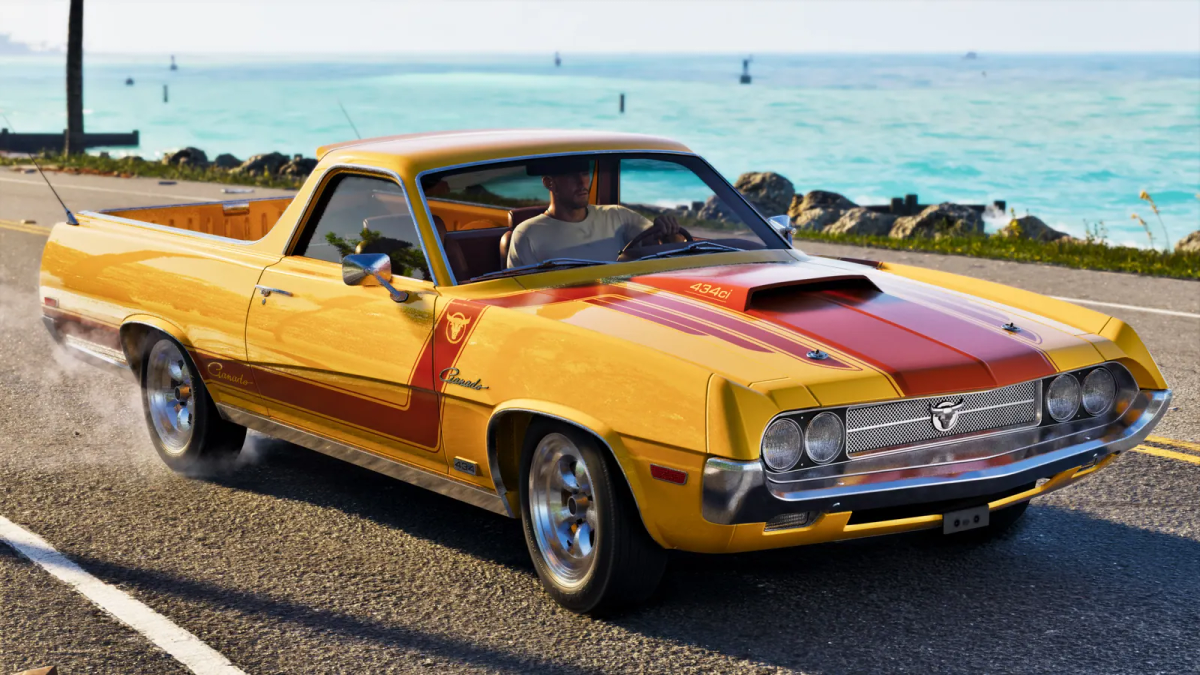
Quick answer: in GTA 6 your character can drive to a map waypoint on their own, for free, with no taxi, from the start of the game. You need three things: be in a vehicle, have a waypoint set and be on a public road. The shortcut: hold D-pad down and, while holding it, press Options (PS5) or Menu (Xbox). That opens Cinematic Mode, and a prompt in the bottom-right corner shows the button that turns auto drive on.
Buttons and menus come from player guides as of November 21, 2026, and a patch can change them.
Step by step
| Step | PS5 | Xbox Series X|S |
|---|---|---|
| 1. Open the map and pick a destination | X | A |
| 2. Get on a public road | Same on both | Same on both |
| 3. Enter Cinematic Mode | Hold D-pad down and press Options | Hold D-pad down and press Menu |
| 4. Turn auto drive on | The button shown in the bottom-right prompt | The button shown in the bottom-right prompt |
| 5. Change the speed | L2 / R2 | LT / RT |
- Set the waypoint. Without one, the AI has nowhere to go.
- Stay on a public road. By default, the feature only works on them. If the option is greyed out, drive onto a road and try again.
- Enter Cinematic Mode with the combo in the table.
- Press the button the bottom-right prompt shows. It changes with the console and the control scheme (see the GTA 6 controls).
- Pick a speed. There are three, and 2 is the default.
How to stop
Hold the same button you used to turn it on. Control comes back in about a second, and you can switch it on again right away. Avoid pressing other buttons to cancel: it can have side effects, such as your character jumping out of the car.
Off-road use
By default it only works on public roads. To open it up, go to Pause > Settings > Gameplay and change Auto Drive from Restricted to Unrestricted. A word of caution: the setting only widens when the feature can be used, including in less safe situations. It doesn’t guarantee a crash-free trip, and the AI is more reliable on roads.
When it’s worth it (and when it isn’t)
Auto drive follows traffic laws at every speed and doesn’t take the best shortcuts. Driving yourself is much faster. It’s for anyone who wants to cross a long stretch without driving while the camera cuts between angles on its own, not for anyone in a hurry.
| Option | Cost | What you need | Speed |
|---|---|---|---|
| Auto drive | Free | A vehicle, a waypoint and a public road | Slower than driving |
| RydeMe | Paid, through the phone | The app unlocked | You can skip the ride for a higher price |
| Paradise Taxi | Paid, pocket cash | It’s in your phone’s Contacts list | Skipping the ride costs extra |
| Driving yourself | Free | A vehicle | Much faster than auto drive |
Don’t use it in police chases or in areas with no proper roads. If the cops are on you, take the wheel back: see how to lose the cops.
What we don’t know yet
- Motorcycles, boats and aircraft: the sources don’t say whether auto drive works on them.
- Whether the buttons change under another control scheme: the bottom-right prompt is your reference.
FAQ
Do I need a taxi or RydeMe to use it? No. Auto drive is free and depends on neither.
Why is the option greyed out? Because you’re not on a public road. Drive to a road and try again.
Can I use it with any destination? Only with a waypoint set on the map. With no marker, the AI doesn’t know where to go.
How do I stop auto drive? Hold the same button you used to turn it on.
Does it work on motorcycles? The sources don’t say. Test it carefully or use a car.
Updated November 21, 2026. If a patch changes the buttons or the menu, this page will be revised.
Sources: this article brings together GTA 6 information from specialized sites and outlets. Credits: GTABase, Games.gg.